
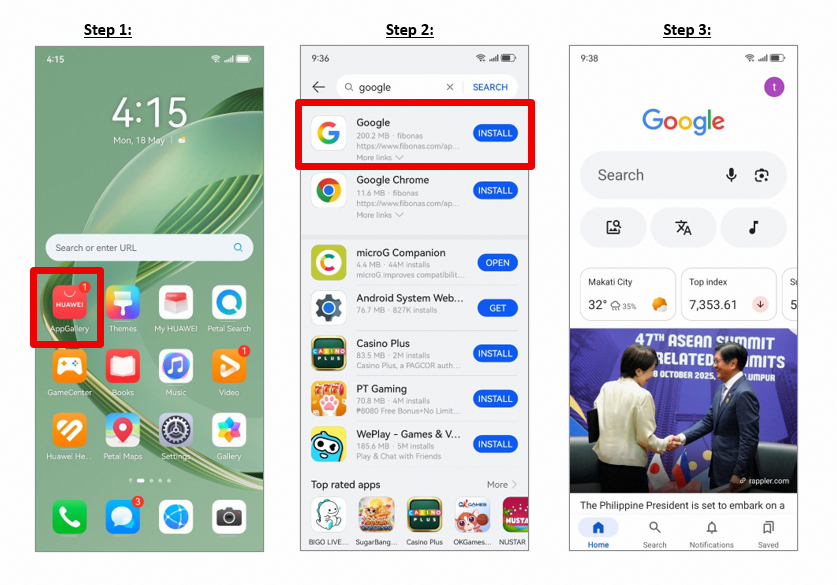
Installing an app is only the beginning. Overseas users may still encounter a blank sign-in screen, delayed notifications, missing location access, failed updates, or an app that works on Wi-Fi but not on a local SIM. Most problems are easier to solve when you first confirm the installation route, then check the network, permissions, and background settings in a clear order.
Confirm the Installation Route
Open AppGallery and check whether the app or compatibility tool has an update. Huawei’s google installer for huawei community page describes using AppGallery to find and install GBox before signing in to supported Google apps. Do not keep several copies installed from different websites, because package conflicts can cause update and login problems.
If you previously used an unofficial installer, save important files and account details before removing it. Reinstall from AppGallery rather than layering another package over the existing setup.
Fix Sign-In and Loading Problems
Switch between Wi-Fi and mobile data, set the phone’s date and time to automatic, and restart the app. Public networks may require a browser login page or may block background traffic. A VPN can also affect account verification, so test without it when login repeatedly fails.
If the app opens but remains blank, clear its cache first. Clearing app storage is a stronger action because it signs you out and removes local settings. Use it only after checking the network and updates.
Restore Notifications and Location
For messages, mail, maps, and delivery apps, review notification, location, and mobile-data permissions. Then check App launch or battery management. Allowing an important app to run in the background can improve alerts, but it may use more battery.
With a Google installer for Huawei setup, permissions may need to be checked both for the Google app and for the compatibility environment. Test one feature at a time: send a message, request a location update, or upload a small file.
Handle Updates and Storage Errors
Free storage space and update AppGallery, HMS Core, the compatibility tool, and the individual app. Avoid updating the same app from two stores. If a newer version stops working, do not immediately download an older APK from an unknown mirror.
Reinstallation should be the final routine step. Sign out where possible, confirm that synced data is available online, remove the affected app, restart the phone, and reinstall it from the trusted source.
Use Safer Fallbacks Abroad
When an app remains incompatible, use its official web version or a native local alternative. This is especially important for banking, identity, health, and payment apps, where unofficial packages create unnecessary risk. Contact the app developer or Huawei support if a critical function is unavailable.
Use the google installer for huawei page as the Huawei-specific baseline. From there, check network, permissions, battery settings, updates, and storage one change at a time. A controlled troubleshooting process is safer than repeatedly trying different installer files.